
Scripting HelpersARCHIVE
A little piece of Roblox history. Preserved for everyone, one question at a time.Read about the archive →
✓ ANSWER ACCEPTED

How do I CFrame my tree models?

I'm currently working on a terrain generator and I need trees to stick in the ground. Here is a snippet of the part I need help with. How do I get it so that the trees go into the ground besides hover above the ground? Thanks!

if rn > 200 and rn <= 300 then
				local treeClone = tree:Clone()
				treeClone.Parent = treeModel
				treeClone:MoveTo(p.Position + Vector3.new(0, p.Position.Y/2 - 10, 0))
			end

1 comment

0

You need to set a primaryPart and use SetPrimarypartCFrame if you don't want collision involved in your positioning.

1 answer

✓ Accepted answer

You can use Model:SetPrimaryPartCFrame(CFrame.new()) after setting the model's primary part. You can set this by either using a script,

Model.PrimaryPart = Model.Main -- You will need to change Model and Main to something that fits your needs.

or by setting it manually in Studio with the properties panel.

After you've set your primary part, you can use the function I mentioned at the top of the post to move the entire tree to an exact location. Here's an example of a object tree I made for this demonstration. http://i.imgur.com/7Pm1Xau.png

As you can see, I have set the primary part of the Tree model to Workspace.Tree.Main.

Now, use this code to move it.

game.Workspace.Tree:SetPrimaryPartCFrame(CFrame.new(0,50,0)) -- This will move the tree 50 studs into the air.

That's all there is to it! Leave an upvote and accept the answer if I helped. :) (edit: fixed code example)

1 comment

0

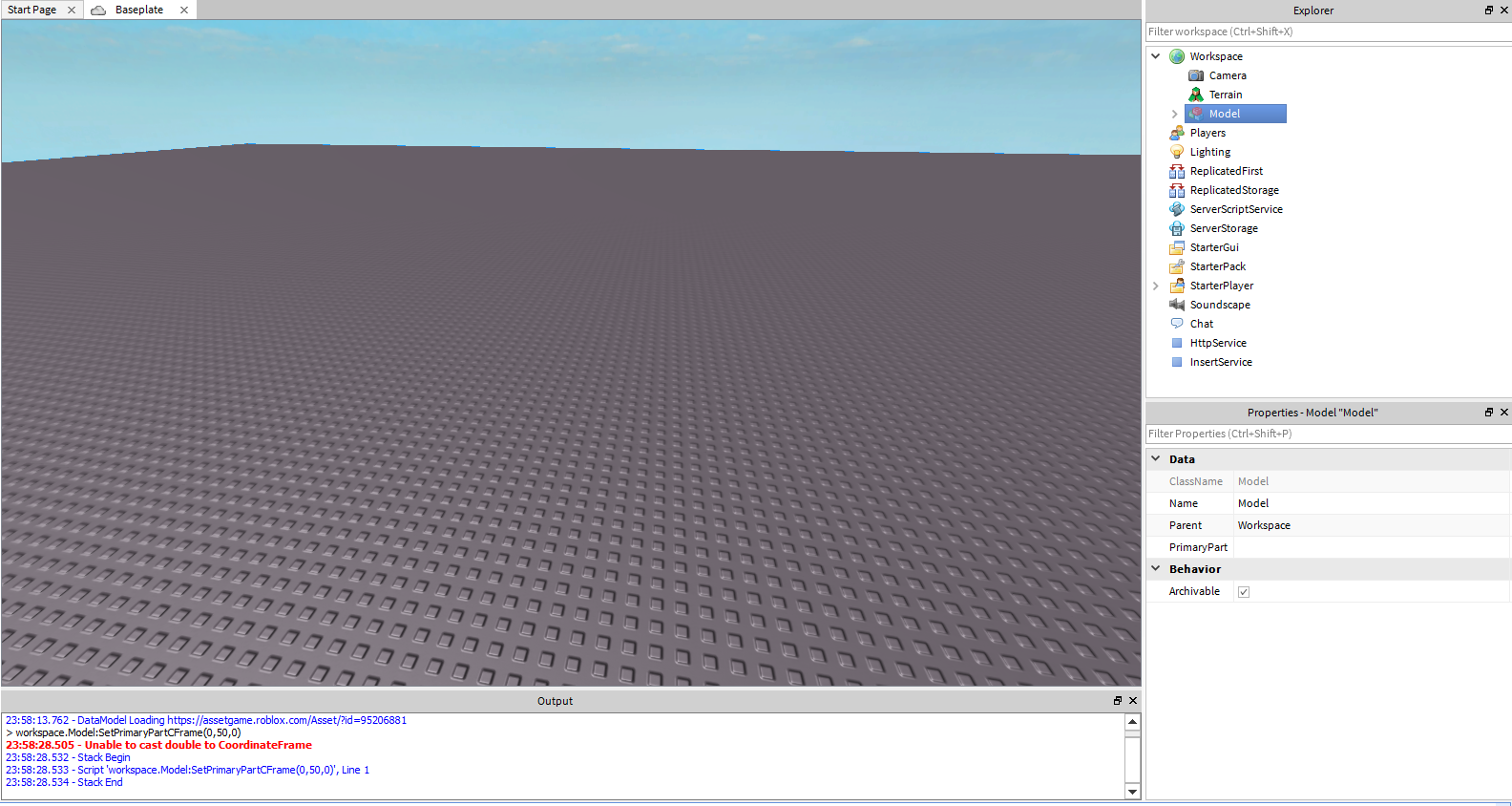
You can't use :SetPrimaryPartCFrame like that https://i.gyazo.com/0a36af8edef3e133bd3c56a7bd887b1b.png

This discussion is preserved as it was. New answers, comments, and votes are closed.