Scripting HelpersARCHIVE
A little piece of Roblox history. Preserved for everyone, one question at a time.Read about the archive →
✓ ANSWER ACCEPTED

How do I return the full BrickColor Pallete? [SOLVED]

I'm working on a painting tool since currently with roblox's new pallete it broke the old paint tools, and people are starting to annoy me about my game, I'm working on the color picker GUI but I dont want to spend the time making all of the buttons for BrickColors, How do I return the whole pallete and put the buttons in? Here's my code for the tool itself, the full code currently: (If you didnt get the gist, my problemo is adding the buttons and returning the color pallete)

player = game.Players.LocalPlayer
mouse = player:GetMouse()
Interface = script.Parent.Interface
Item = nil
gui = Interface:Clone()
gui.Parent = player.PlayerGui
gui.BTPaintToolGUI.Visible = false
colorpallete = nil --I have no idea how to return the pallete, so it's nil
--The button creation code would go here

script.Parent.Equipped:connect(function() --when the tool is equipped, we want it to do something
	
	gui.BTPaintToolGUI.Visible = true --Make the GUI visible
	clickedconn = mouse.Button1Down:connect(function() --Put a function for when you click
		if mouse.Target ~= nil then --If your mouse is not clicking blank space, then run this code
			if mouse.Target.Locked ~= true then --Make sure that the part is unlocked, after all, we dont want abusers :)
				script.Parent.Selector.Adornee = mouse.Target --Make the selectionbox visible on the part
				mouse.Target.BrickColor = script.Parent.Color.Value --Set the color
				Item = mouse.Target --Set the item to the mouse target, so if you set a new color and you've still selected a part,
				--it will roll over the same part.
			else --If not..
				script.Parent.Selector.Adornee = nil --Hide the SelectionBox
				Item = nil --Remove the item
			end
		else --If the part's locked then
			script.Parent.Selector.Adornee = nil --Hide the selectionbox
			Item = nil --Remove the item
		end
		
	end)
	
end)
script.Parent.Unequipped:connect(function() --When the tool is unequipped, we want it to stop itself
	clickedconn:disconnect() --Stop the clicking so that you cant use the tool when unequipped
	gui.BTPaintToolGUI.Visible = false --Hide the GUI
end)

Please help guys, It took me a while to get most of it to work
2 comments

0

Roblox actually has a paintbucket gear. It may be worth taking a look at it.

0

@Perci1 Thanks, I'll take a look at it.

1 answer

✓ Accepted answer

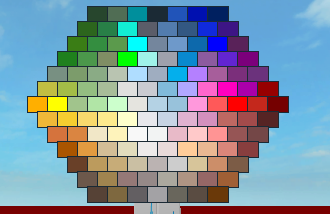
If you print out some things from BrickColor.palette, you'll notice they're in the same order as the hexagon palette used by Studio:

print( BrickColor.palette(0) ) -- Earth green, top left
print( BrickColor.palette(6) ) -- Navy blue, top right

That means the hex is just numbered like this:

0   1   2   3   4   5   6   
7   8   9   10  11  12  13  14  
15  16  17  18  19  20  21  22  23  
24  25  26  27  28  29  30  31  32  33  
34  35  36  37  38  39  40  41  42  43  44  
45  46  47  48  49  50  51  52  53  54  55  56  
57  58  59  60  61  62  63  64  65  66  67  68  69  
70  71  72  73  74  75  76  77  78  79  80  81  
82  83  84  85  86  87  88  89  90  91  92  
93  94  95  96  97  98  99  100 101 102 
103 104 105 106 107 108 109 110 111 
112 113 114 115 116 117 118 119 
120 121 122 123 124 125 126 

It's like a really awkward rectangle.

If it were a rectangle, the code to make this would be pretty simple:

local i = 0
for y = 0, H-1 do
	for x = 0, W-1 do
		local color = BrickColor.palette(i)
		local position = Vector2.new(x, y)
		-- (make the gui)
		i = i + 1
	end
end

This is really close to working for this. W just has to vary by row. The first row, it's 7, the next, 8, 9, 10, 11, 12, 13, 12, 11, ..., 7.

You could hardcode that list, or use loops.

A solution

Here's how to save some typing. First, make the for x loop a function, called something like row:

function row(W, y)
	for x = 0, W - 1 do
		local color = BrickColor.palette(i)
		local position = Vector2.new(x, y)
		-- (make the gui)
		i = i + 1
	end
end

next, just call row a bunch:

local y = 0
-- 7, 8, .., 12, 13
for W = 7, 13 do
	row(W, y)
	y = y + 1
end
-- 12, ..., 8, 7
for W = 12, 7, -1 do
	row(W, y)
	y = y + 1
end

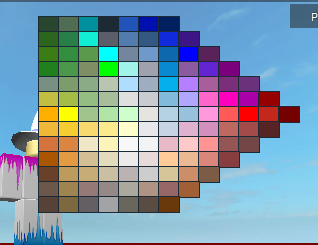
This will almost work, except that we're only varying the width of each row, not the left side. Thus it will look like this:

http://i.imgur.com/0oVJZX3.png

To get it to look like a hexagon, just center each row, as normal - by subtracting half the width:

		local position = Vector2.new(x - W / 2, y)

You'll get something that looks like this:

http://i.imgur.com/teuxDV8.png

This is missing the gray colors. I think they might just be the remaining colors. There's few enough that it wouldn't be difficult to hard code them, anyway.

Drawing the box

Drawing the boxes is pretty simple. You just need to make a TextButton, set its BackgroundColor, and set its Position.

function box(color, x, y)
	local m = Instance.new("TextButton", script.Parent)
	m.Size = UDim2.new(0, 20, 0, 15)
	m.Position = UDim2.new(0, x * 20, 0, y * 15)
	m.BackgroundColor3 = color.Color
end

Then just call box(color, x - W/2, y) in the appropriate place.

Full Solution

function box(color, x, y)
	local m = Instance.new("TextButton", script.Parent)
	m.Size = UDim2.new(0, 20, 0, 15)
	m.Position = UDim2.new(0, x * 20, 0, y * 15)
	m.BackgroundColor3 = color.Color
end

local i = 0
function row(W, y)
	for x = 0, W - 1 do
		local color = BrickColor.palette(i)
		box(color, x - W/2, y)
		i = i + 1
	end
end

local y = 0
-- 7, 8, .., 12, 13
for W = 7, 13 do
	row(W, y)
	y = y + 1
end
-- 12, ..., 8, 7
for W = 12, 7, -1 do
	row(W, y)
	y = y + 1
end

1 comment

0

Good answer, Can you edit it and put the code where it draws the GUI? The GUI part has me really stumped :/

This discussion is preserved as it was. New answers, comments, and votes are closed.